Adding Services
Learn how to add a new entry to the Services collection. This form is dynamically generated based on the schema configuration.
Step 1: The List View
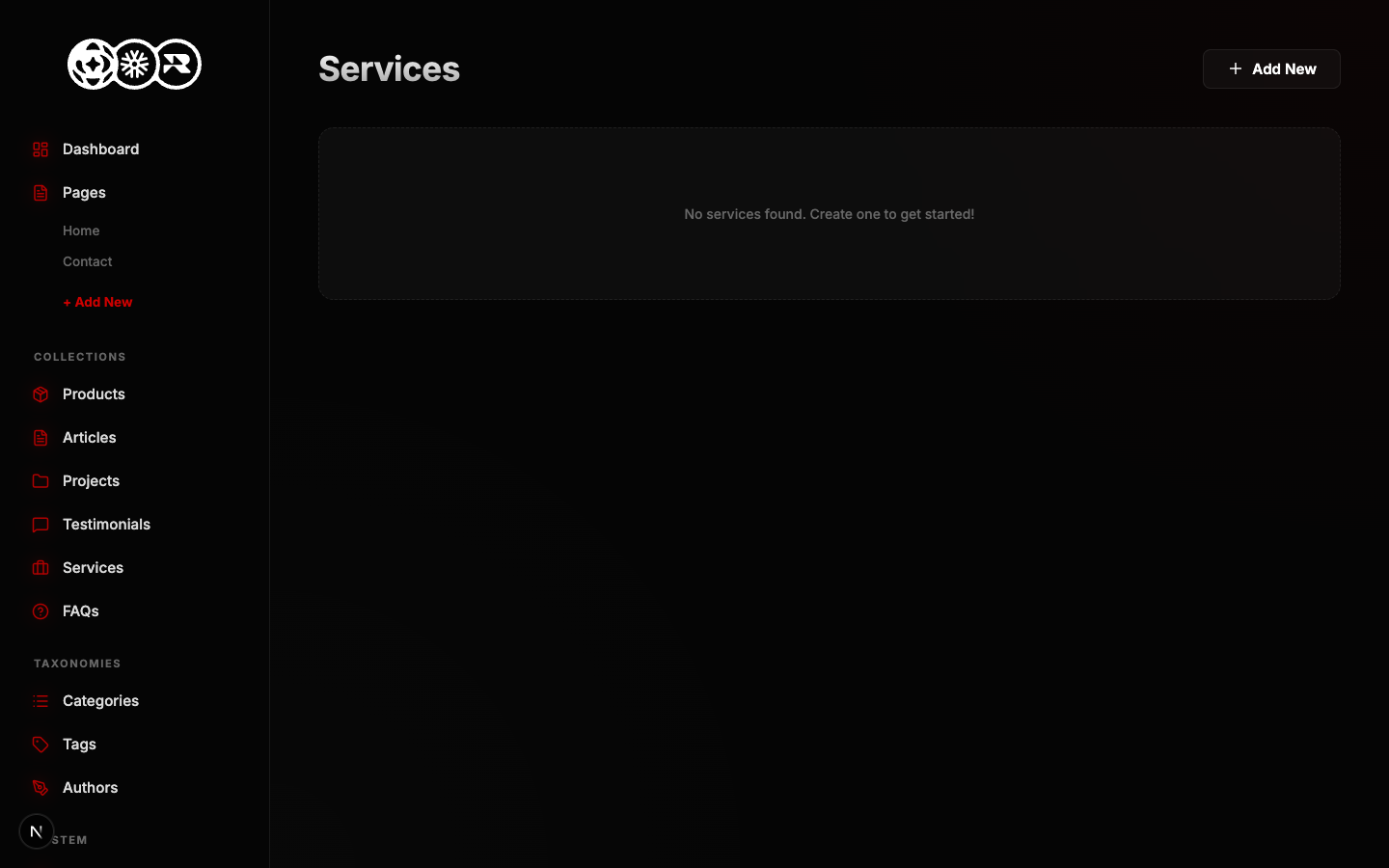
Navigate to the Services tab in your sidebar. Here you will see all existing entries. Click the + Add New button.
Step 2: The Data Form
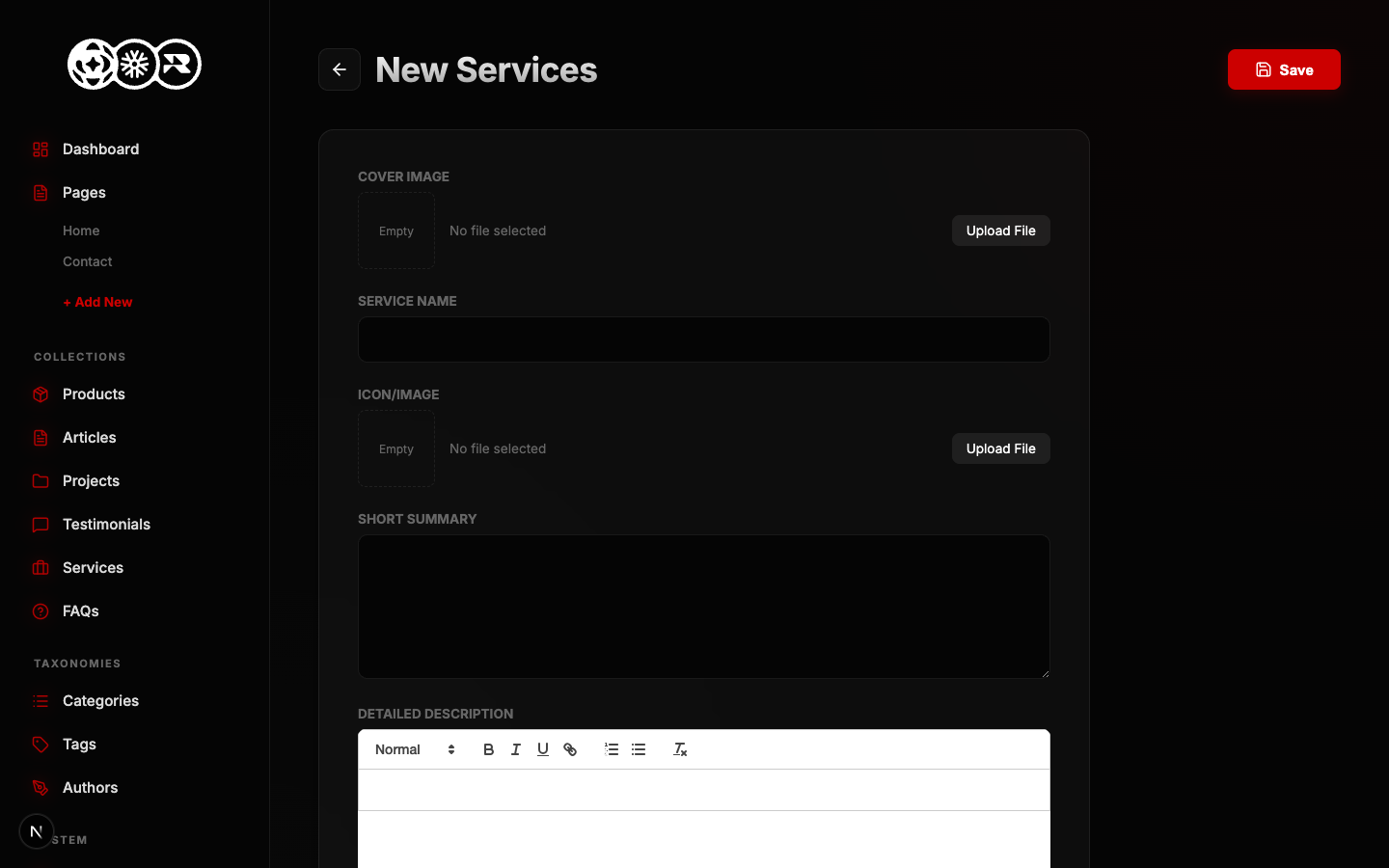
Fill out the following required schema fields:
- Cover Image image
- Service Name text
- Icon/Image image
- Short Summary textarea
- Detailed Description richtext
- Pricing Tier text